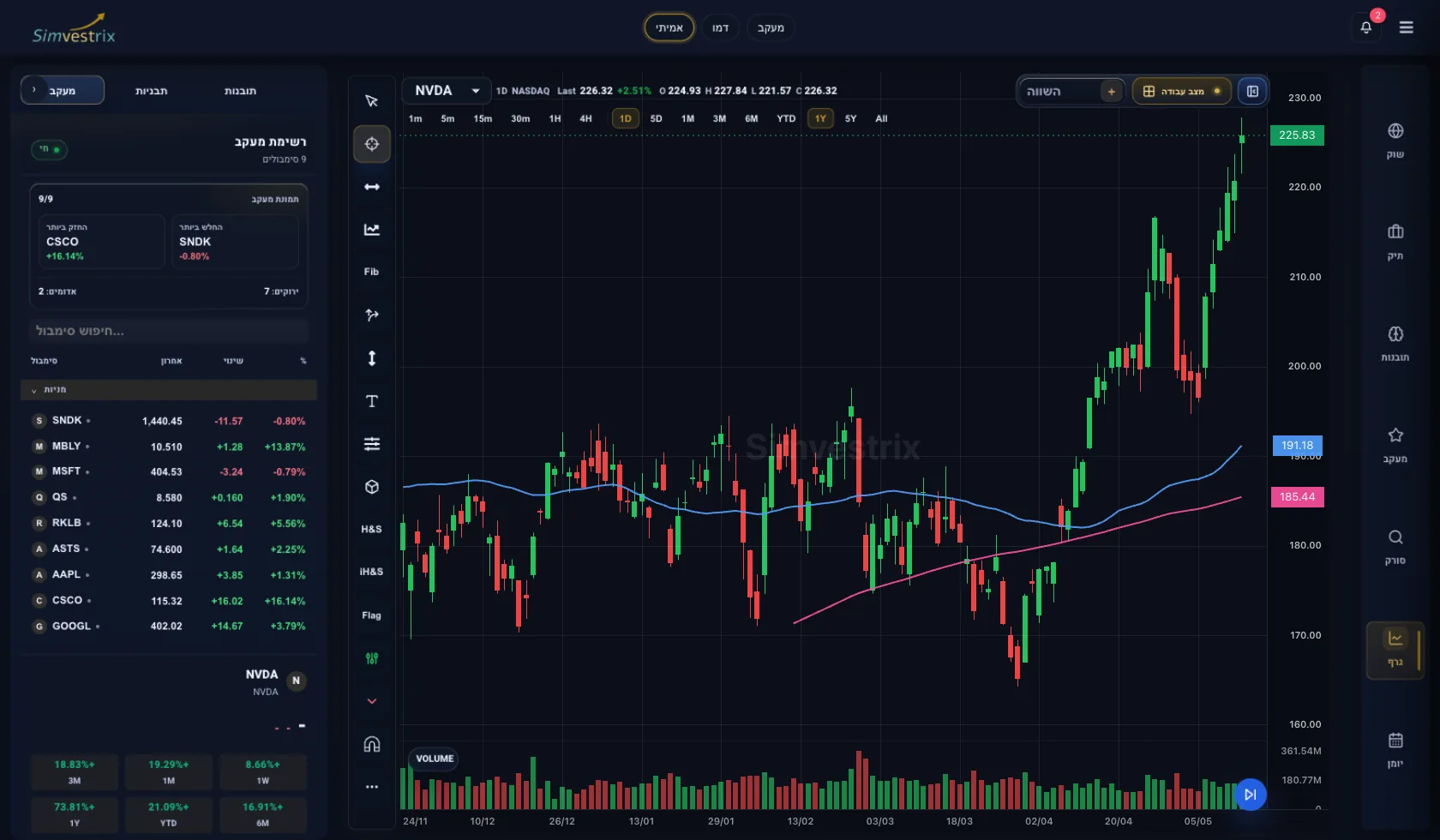
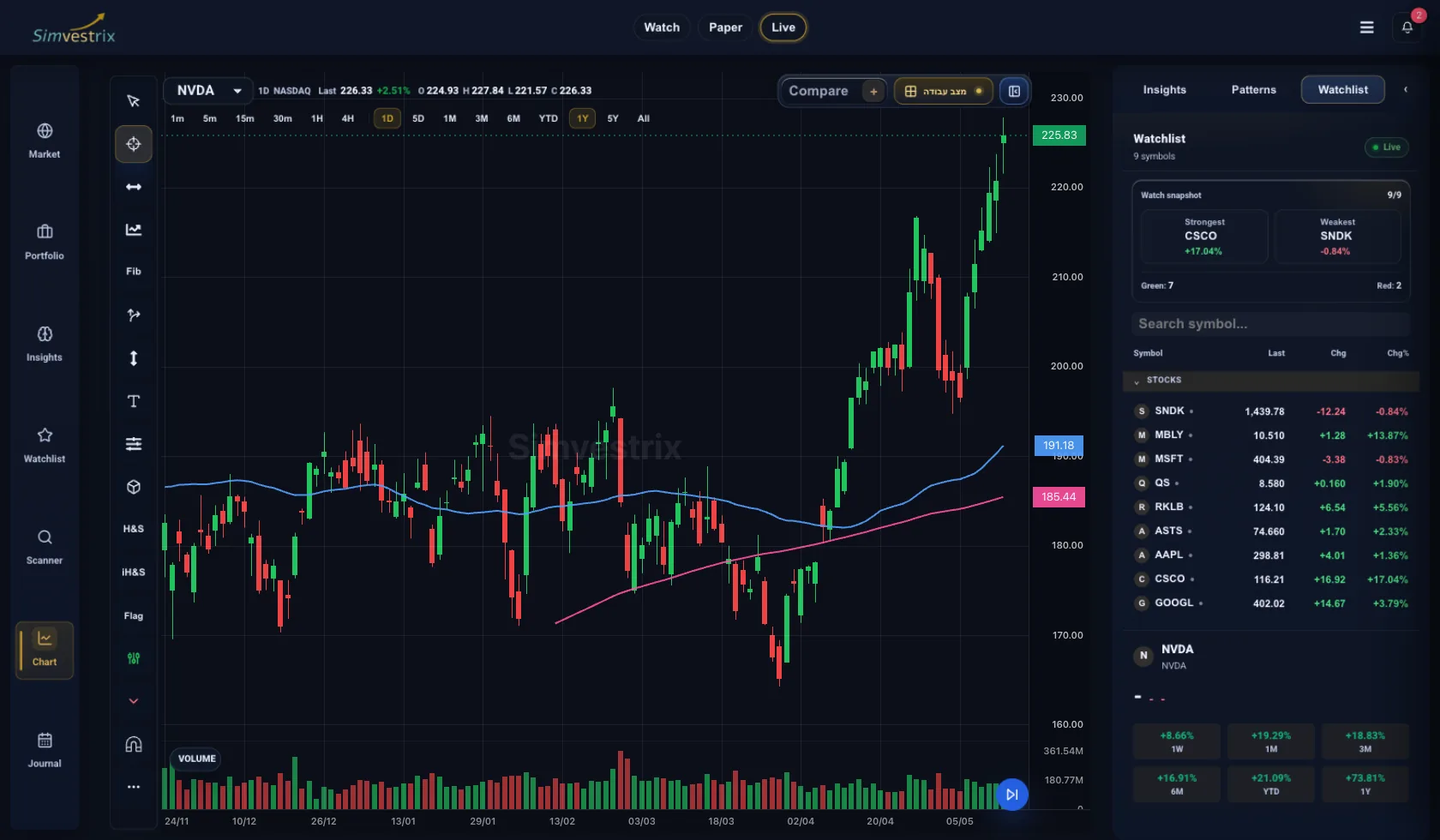
How can we help?
Help with sign-in, connecting a broker, using the app, and subscriptions.
Frequently asked questions
Account & sign-in
I can't log in — what do I do?
To reset your password: on the login screen, choose 'Forgot password', enter your email, and a reset link is sent if the account exists — for privacy, the same message is shown even when the email isn't registered. The link is valid for 15 minutes only; request a new one if it expires. If the email never arrives: check spam first. If you signed up recently and haven't finished registration (your email isn't verified yet), a 'Forgot password' request sends a link to finish signing up instead of a reset link — that's the one you need in that case. The login screen also offers to resend a verification link when sign-in fails because the account isn't verified yet.
Connecting a broker
Is my broker supported?
Simvestrix currently connects to two brokers: Alpaca and Tradier. Tradier is Live-only, with no Paper environment. If your broker isn't one of these two, it can't be connected right now, and we can't promise whether or when support for another broker will be added. That said, the app works fully without connecting a broker at all: the market, watchlist, chart, trade planning, and Watch mode all work with no connection, and you can log trades you place through another broker in the journal on your own (see the journal question).
Do I have to connect a broker to use the app?
No. The market, watchlist, chart, trade planning, and Watch mode all work without a connected broker. You can also log trades in the journal on your own. A broker connection is only needed to place orders yourself (Paper or Live) or to sync trades automatically from the broker.
Where do the prices I see come from?
It depends on whether a broker is connected, and the switch between the two is automatic — there is nothing to choose. Without a broker connection, the data comes from external data providers: chart history and the daily change are settled through the end of the last trading session, and the live price in the watchlist arrives on a feed delayed by about 15 minutes. There is no continuous stream in this state; the screen refreshes by request. With a broker connected, prices and the stream come straight from your own broker account, through the access you granted, and arrive as a continuous stream. The freshness itself is set by your market-data subscription at the broker, not by us: an account entitled to real-time data receives real-time, and an account without that entitlement receives delayed data. A badge beside the price states whether what you are seeing is real-time or delayed.
Why haven't my balances or trades updated?
A few possible reasons: if you hold several accounts at the broker, the active account selected in Settings may not be the one you expect — you can check and switch it there. If the broker connection expired, you'll see a message and need to reconnect. You can also press 'Refresh status' in Settings to pull the latest data. If it still looks off, check the account directly with the broker.
Orders & trades
Where do I check why an order was rejected?
In open orders and in the order history, a rejected order shows the status 'Rejected', and the trading screen also shows an immediate notice about it. Common causes: insufficient buying power for the trade, a sell quantity larger than what's actually held, or the broker account not yet active for trading (for example while an account is being activated, or before a deposit has fully settled). The exact reason comes from the broker itself and isn't always shown in full in the app. For an urgent issue with an order or a position, see the note below.
What happens to an order stuck as 'Pending'?
A 'Pending' status means the order hasn't been finally processed by the broker yet — it's neither filled nor rejected. You can see it, and edit or cancel it as long as it hasn't executed, in the 'Open orders' panel on the Portfolio screen.
Urgent issue with an order or a position
For an urgent issue involving an order or a position, check your account status directly with the broker and contact broker support if needed.
Trading modes
How do I connect an Alpaca demo account?
In Settings, on the broker connection screen, choose the Paper environment. The app opens a secure sign-in (OAuth) with the broker, where you authorize access to your Paper (demo) account. Not every broker supports the Paper environment (Tradier, for example, is Live-only): if you haven't connected a broker yet, the Paper option only lists brokers that support it (such as Alpaca); if you already have a connected broker that doesn't support Paper, the option stays disabled and there's no way to switch to Paper through that broker.
What's the difference between a broker demo account and Paper mode in the app?
There isn't a separate one: Paper mode in the app is exactly the Paper (demo) account connected at the broker itself via OAuth. There's no additional internal simulation engine — data, orders, and fills in Paper mode come from the broker, the same way Live does, just through its demo environment.
Trading journal
How do trades reach the journal, and what if one is missing?
Trades reach the journal in two ways: automatically, when an order placed from the app fills at a connected broker (Paper or Live); or self-reported, via 'Report trade' on a saved trade plan on the Trade plans screen — that also lets you log a trade you placed through another broker, or no broker at all, in Watch mode. If a trade is missing: one expected from a connected broker follows the same causes as balances not updating (check the active account, the connection status, and press 'Refresh status' in Settings); one you took yourself won't appear on its own — it needs to be reported manually from the plan it came from.
Subscriptions & billing
How do I cancel a subscription or delete my account?
To cancel a subscription: in Settings, on the subscription screen, tap 'Manage subscription' — this takes you to subscription management with the provider you signed up through (Apple, Google Play, or PayPal), since billing happens there. To delete your account, there's a separate 'Delete account' action in Settings. These are two separate actions — canceling a subscription does not delete the account, and vice versa.
Can I get a refund?
A refund goes through whichever provider you subscribed through — Apple, Google Play, or PayPal — under that provider's own refund policy, since that's where the charge actually happened. You can also write to us using the ticket form below, topic 'Subscriptions & billing', and we'll look at the case, but issuing the refund itself depends on the provider you paid through.
What's included in each plan?
The full breakdown of what's included in each plan, including prices, is on the pricing page (/pricing). Here, on the support screen, we help with managing, canceling, and refunding a subscription — not with choosing a plan.